
Viewer on Google Play · 171 countries

Help us make every show feel closer.

Front Row turns a phone into a live venue for independent artists and their fans. Install the Android app now, or join a coordinated partner session to help us improve the experience.

Viewer is on Google Play in 171 countries. Studio is on Android and iPhone in Ghana, Nigeria, the UK and the US. Viewer for iPhone is coming soon.

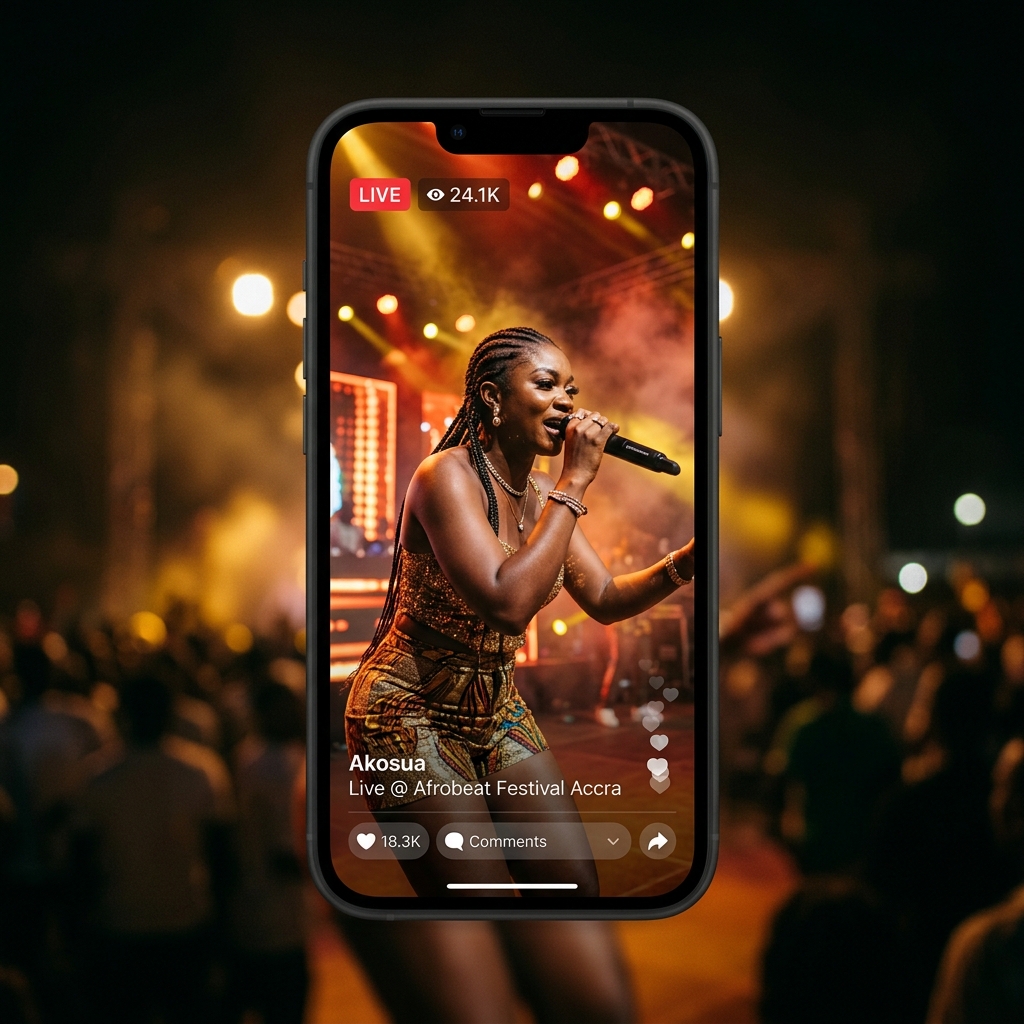
Front Row live concert experience on a phone
Sound check Built for real networks
Test audience Your feedback shapes the room
Google Play Viewer: 171 countries · Studio: Ghana + Nigeria + UK + US
iPhone Studio on the App Store · Viewer test access by invitation

Choose your platform

Your test seat is waiting.

Viewer is available on Google Play in 171 countries. Studio is available on Google Play and the App Store in Ghana, Nigeria, the United Kingdom and the United States. Public installs do not require an invitation. The guide below is for coordinated partner sessions; iPhone partner testing uses a private TestFlight invitation.

Available now

Google Play

Android apps

Viewer is available on Google Play in 171 countries. Studio is available in Ghana, Nigeria, the United Kingdom and the United States. Install Viewer to watch events, or Studio to prepare and run an artist broadcast. For a coordinated partner session, check with your coordinator before installing a test version.

Seeing an access message? Request help through Front Row Support and include the Google account you want to use only if you are comfortable doing so.

Studio available now

App Store + TestFlight

iPhone apps

Studio is available on the App Store in Ghana, Nigeria, the UK and the US. Viewer for iPhone is coming soon. To try upcoming versions in a partner session, use TestFlight.

Get Studio on the App Store

Existing TestFlight testers should use the private invitation already supplied. Confirm the current test version with your coordinator before the session. If you need an invitation, request access below.

Request iPhone access

New to TestFlight? Download Apple’s TestFlight app.

Partner test guide

Run one focused 60-minute session.

Five to ten people is enough. Allow 15 minutes for preflight, 20 minutes live, 15 minutes to end and debrief, and 10 minutes of buffer. Assign the roles first and keep one shared timeline.

Use one invited store account and one sign-in phone number per person.

Use your own reachable phone number unless the coordinator privately assigns a dedicated tester identity. Never reuse another tester’s number or share verification codes, TestFlight invitations, or Google accounts. No test phone numbers or one-time codes are published on this page. Keep real payments out of this session unless the coordinator gives a separate written payment test brief. Viewers use Front Row Viewer and the host uses Front Row Studio; the coordinator confirms the current test version for each app privately.

Standard GA uses a separate payment-test brief.

The normal partner session uses a free ticket. Only test Standard GA when the coordinator supplies a written payment brief. The invited account, installed app, expected storefront, product, and localized price must match the written brief. On Google Play, Ghana testers should see GH₵10 and Nigeria testers should see NGN 1,280; the App Store and other authorized storefronts show their own localized price. If the product is unavailable or opens on a different account, stop before checkout and report it. Do not change an App Store or Play country or add a payment method just to force the test. The ticket covers the scheduled live show only; it does not include a replay.

1 person

Coordinator

Sends the install links, confirms every account has access, keeps time, and owns the incident notes.

1 person

Host or artist

Uses the pre-provisioned Front Row Studio host app, runs preflight, and broadcasts from the supported phone path for the main test.

Optional lab role

ATEM operator

Owns cameras, audio, switching, recording, and the disposable encoder setup described below.

3–8 people

Viewers

Use different phones, carriers, and Wi-Fi or mobile-data connections. Cap this at seven when an ATEM operator joins so the whole group remains at ten. One viewer should take the timeline notes.

Before the session

Prepare access and the room

  1. Choose a 20-minute free-ticket test event and share its exact start time in Ghana time.
  2. Use only cleared test content: the event may be discoverable by other beta users because Front Row events are not private today.
  3. Confirm the host has the coordinator-approved Front Row Studio version before inviting viewers.
  4. Confirm the current coordinator-approved app, store and build number privately for each tester. Check the installed version against that session brief. If it differs, stop and ask the coordinator; do not sideload a replacement.
  5. Ask each person to record phone model, OS version, carrier, and whether they will use Wi-Fi or mobile data.
  6. Pick one private group call for coordination, but keep it muted while evaluating Front Row audio.
  7. Choose one note-taker and use the feedback fields on this page.
  8. Get recording consent from the performer and anyone visible, use cleared test media, and agree who keeps each recording and when it will be deleted.

First 15 minutes

Preflight before the audience joins

  1. The host runs a Sound Check of up to 15 minutes in Front Row Studio with one or two confidence viewers. It allows no more than five guests; never forward or screenshot its private invite link.
  2. Confirm speech, music, and applause-level peaks are clear on headphones and that picture and sound are in sync.
  3. On the coordinator-approved build, each viewer opens Profile, then Push notifications. If Off, tap it, respond to the prompt or open settings, return, and confirm it refreshes. If On, open settings, change it once, return, and confirm the new state.
  4. Open the event from Home or Explore, confirm its title, artist, start time, and zero price, then tap Get Ticket and Get Free Ticket. Verify “You’re In!” before the live window.
  5. Stop if the event, account, price, or audience is not the intended test fixture.

Next 20 minutes

Join, interact, and recover

  1. Viewers tap Join one at a time. The note-taker records the tap time and when moving picture and sound first arrive.
  2. Confirm the LIVE state is truthful, audio keeps playing, and the performer’s lips stay in sync.
  3. Use chat, reactions, or polls only when those controls are visible. Record missing, delayed, or duplicated actions.
  4. With three viewers, one switches from Wi-Fi to mobile data, one backgrounds the app for 30 seconds, and one stays unchanged as the control. With a larger group, repeat each change once.
  5. Record every frozen frame, silent interval, reconnect message, crash, and the time normal playback returns.

Final 15 minutes

Prove the show ends cleanly

  1. For the phone-camera path, the host taps End Stream in Front Row Studio and confirms it. Studio then stops its camera and microphone and marks the event ended.
  2. Viewers confirm the LIVE badge disappears, the ended state is clear, and the old stream cannot be reopened.
  3. Check Tickets and Profile once more for stale or contradictory information.
  4. Collect reports immediately while times and network changes are still fresh.
  5. Send one short session summary, then a separate message for each distinct issue and any device-specific evidence.

The test plan

Four moments that matter.

We care more about a trustworthy experience than a long feature list.

  1. Get through the door

    Install through the coordinator-approved private store access, sign in with your own reachable phone number or a tester identity assigned to you privately, and prove the notification row follows the phone’s system permission after a settings change and app resume.

  2. Find your next show

    Browse Home, Explore, Tickets, Profile, the seeded artist, and the scheduled event. Note stale labels, wrong times, dead ends, or anything that does not feel trustworthy.

  3. Stay in the room

    During the test window, join from mixed connections, listen for uninterrupted audio, switch networks, background the app, and time every recovery.

  4. Tell us what broke the spell

    End the event from the host app, confirm every viewer leaves LIVE cleanly, then send the screen, time, device, network, expected result, and actual result.

ATEM Mini lab

Test the switched program feed safely.

ATEM support is a controlled compatibility experiment, not a production feature. Run it only with a coordinator-controlled, free-ticket test event and an out-of-band disposable LiveKit ingress prepared by an authorized operator. The event may be visible to other beta users, so use no sensitive content.

Do not connect the ATEM directly to a phone.

Front Row Studio does not currently capture USB cameras. The first lab path is ATEM USB webcam output into a computer running OBS, then OBS into the coordinator-provided disposable ingress. Direct Ethernet streaming is only available on ATEM Mini Pro or Extreme models. Blackmagic documents RTMP; an RTMPS connection is a separate experimental compatibility test that must be proven for the exact model, firmware, and destination.

First lab path

ATEM USB webcam with OBS

Use OBS on a computer to receive the ATEM program feed and send it to the disposable ingress. Record locally in OBS because the ATEM Mini Pro and Pro ISO have one USB-C port, so that port cannot also host a recording disk while OBS is using it. Extreme models have different USB hardware; confirm the exact model first.

Compatibility only

ATEM Pro or Extreme over RTMP

Have the authorized operator prepare a custom XML streaming profile containing the ingress endpoint. Install it, select its Platform and Server entries in ATEM Software Control, and enter only the session-scoped stream key in the Key field. LiveKit accepts RTMP and RTMPS, but Blackmagic documents RTMP; treat RTMPS as experimental until the exact firmware proves the handshake.

Equipment

Build the smallest useful rig

  • An ATEM Mini-series switcher with current matching firmware and ATEM Software Control.
  • One or more locked 1080p30 HDMI cameras.
  • A line-level venue mix or known audio source—never speaker-level output.
  • For the USB path: a computer with OBS, closed-back headphones, and enough storage for a local recording.
  • For the direct Pro or Extreme path: HDMI multiview, wired Ethernet, tested backup power, and a different-carrier backup connection.

Coordinator setup

Prepare without leaking credentials

  1. An authorized operator creates the disposable ingress out of band, and the coordinator creates a controlled free-ticket test event. Skip the lab if either is unavailable.
  2. Receive the custom XML profile and stream key through the agreed private channel. The stream key is a credential: never paste it into chat, notes, screenshots, or this page.
  3. Use one program identity called ATEM Program. Viewers should receive one switched feed, not separate HDMI angles.
  4. Set the first run to 1080p30, H.264 video, AAC audio, and a conservative quality preset.
  5. White-balance cameras, check audio headroom, load a holding slide and end card, and keep the switcher ventilated.

Rehearsal

Prove picture, sound, and switching

  1. Start the local OBS or ATEM recording, then start the private contribution signal.
  2. The coordinator confirms advancing audio and video before inviting confidence viewers.
  3. Check speech, music, and lip sync in the actual Front Row Viewer—not only on multiview.
  4. Cut between every camera, try one short dissolve, and confirm the audience still sees one stable program feed.
  5. Record time to first moving frame and missing audio or video. On the direct path, record ATEM Cache Status; on the USB path, record OBS dropped frames and reconnects.

Recovery and shutdown

Fail once, then finish cleanly

  1. With the coordinator ready, interrupt the contribution uplink once for about 10 seconds, then restore it.
  2. Confirm viewers do not hear duplicate audio and record how long picture and sound take to recover.
  3. End the event in Front Row first. Confirm the ended event does not reopen if the encoder is still sending.
  4. Stop the encoder and local recording, then have the authorized operator delete the disposable ingress.
  5. Play back the local recording and save only privacy-safe timings and incident notes.

Front Row does not create or manage ingress today. No authorized operator, disposable ingress, or coordinator? Skip the ATEM test and use the supported Front Row Studio phone-camera path. See the official ATEM Mini overview and LiveKit Ingress documentation for hardware and transport background.

Before you begin

A few honest beta notes.

The lineup is scheduled in small windows, so an empty Home or Explore screen can be expected between tests. Do not make a real payment unless your test brief explicitly asks you to.

  • Keep the app updated through Play or TestFlight.
  • Test on the connection you normally use.
  • Allow notifications only if you want test-show reminders.
  • Do not share screenshots containing phone numbers or private chat.

Feedback template

Make every report reproducible.

Send one issue per message when possible. Never include a verification code, private chat, ingress URL, or stream key.

Who and when
Tester initials, Ghana date and local time, and event title.
Device
Android or iPhone model, OS version, and Front Row build number.
Connection
Carrier, Wi-Fi or mobile data, and any network switch made during the test.
Action
The exact screen and taps immediately before the problem.
Expected vs actual
What should have happened, what happened instead, and whether retrying helped.
Media timing
Join-to-first-frame time, silent or frozen duration, reconnect message, and recovery time.
Evidence
Screenshot or short recording with phone numbers, private chat, and credentials removed.
ATEM details
USB-to-OBS or direct path, exact model and firmware, video standard, recording result, and either ATEM Cache Status or OBS dropped-frame and reconnect notes.
Send a partner beta report

Good to know

Beta questions.

Why can’t I install an Android app?

Front Row Viewer is available on Google Play in 171 countries. Front Row Studio is available in Ghana, Nigeria, the United Kingdom and the United States. Play may still report that an app is unavailable for an unsupported country or device. Do not change Play country or add a payment method to force access. Ask Front Row Support for help.

Can all ten people join one Sound Check?

No. A private Sound Check lasts up to 15 minutes and allows at most five Viewer guests. This guide uses one or two confidence viewers for Sound Check, then the full invited group joins the separately coordinated test event.

How do I test push notifications?

First open Profile, then confirm Push notifications matches the phone’s system permission and refreshes when you return from settings. Notification delivery needs a separately scheduled test event and trigger time from the coordinator; record the exact time and destination when tapping an alert.

How do I join an iPhone partner test?

Existing TestFlight testers should use their private invitation and confirm the current test version with the coordinator. Request access if you need an invitation.

Will beta activity use real money?

The normal partner session uses a free ticket. A Standard GA test requires a separate written brief plus the invited account, installed app, storefront, product, and localized price named in it. On Google Play, the expected prices are GH₵10 in Ghana and NGN 1,280 in Nigeria; the App Store and other authorized storefronts show their own localized price. Treat every checkout as real; stop before confirming if any account, country, currency, price, or product state differs from the brief.

How do I report a problem?

Send one issue through the feedback form with your phone model, connection type, local time, screen, and the action that failed. Never include a one-time code.

Feedback line

Help us keep the show going.

Found friction, a confusing screen, or a stream that would not recover? We want the unpolished version.

Send beta feedback